
1. How to prepare your computer for sending and receiving packages using SecureIT:
- To provide access to SecureIT, you will receive two emails from a Kindred Team Member. Do not reply to these emails. Please log in to our secure site secureit.kindredcu.com and reply to the sender through there.
- Open the email from Kindred with the subject “New User Account for Kindred Credit Union (secureit.kindredcu.com)”.
This email contains your temporary password. Your username is your email address; your temporary password will be assigned. When entering your temporary password, please be sure you are entering the exact letter/number/character sequence that was provided in the email.
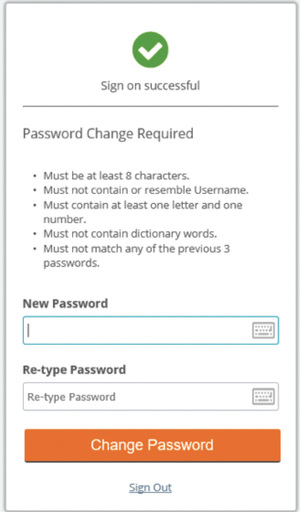
- When you first sign in to SecureIT, the Change Password screen will appear. Follow all seven requirements to enter a new password. (If the password is not secure enough, an error message will appear.) Please enter a new password and click "Change Password".
2. How to receive a package using SecureIT:
- Once you have set up your new password, you will be ready to check the package from Kindred’s Secure Site email box. Click on the subject line to open the message.
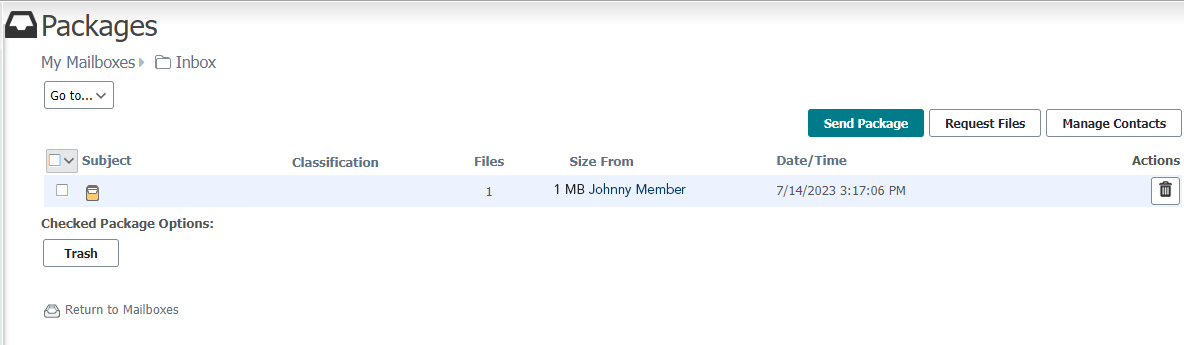
- To download the secured package, click the "Download" button in the message in your inbox. You will have the option to open the file or save it to your device.
3. How to send a package using SecureIT:
- Sign into secureit.kindredcu.com using your username and password.
- Type the recipient's (Kindred Team Member) first and last name in the address bar, then click “Check Recipients”. If the recipient is recognized, then enter the subject line, type your message, and upload your file.
You can only send secure messages to Kindred Team Members by names that are recognized in the SecureIT software. Do not enter a Team Member's email address directly. (If you would like to use SecureIT to transfer secure files to a Team Member who is not on your recipient list, reach out to them outside of the SecureIT platform and request that they send you a link to be added to your SecureIT contacts.)
- You can attach secure files to your message by dragging and dropping the file into the SecureIt message or by uploading them.
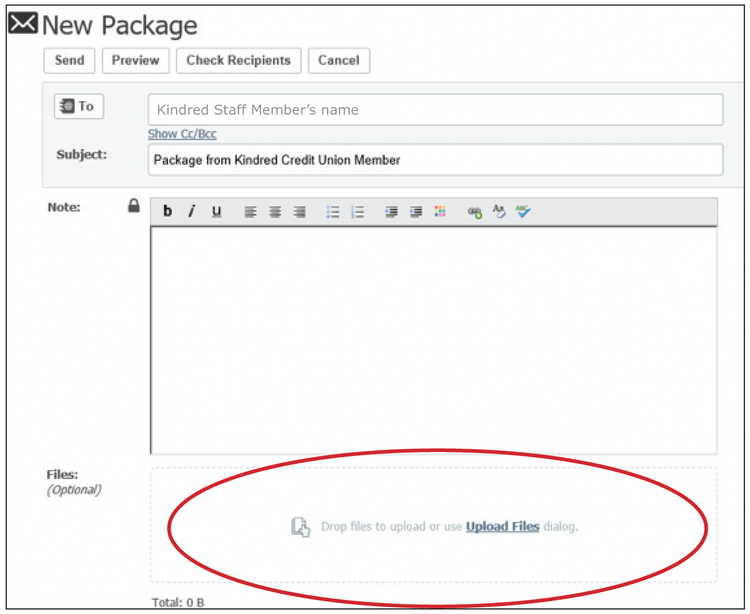
Once the file is attached and you've entered your message, you can either attach additional files or click "Send" to send your email.
- You will receive a confirmation that your message has been sent.